Breaking News




Your Guide to Sovereignty
The Blockstream BTC Wallet, formerly known as Green, is one of the most versatile Bitcoin wallets. You can receive and send bitcoin via the main network and the second layer solutions Lightning and Liquid.
In this step-by-step guide, you'll learn how to create your Bitcoin wallet using the Blockstream app and use your bitcoins in different ways.
Available for iOS and Android, Blockstream Wallet is a wallet non-custodial of Bitcoin. That means:
It supports
To avoid scams, download Blockstream Wallet only through official channels:
And check:
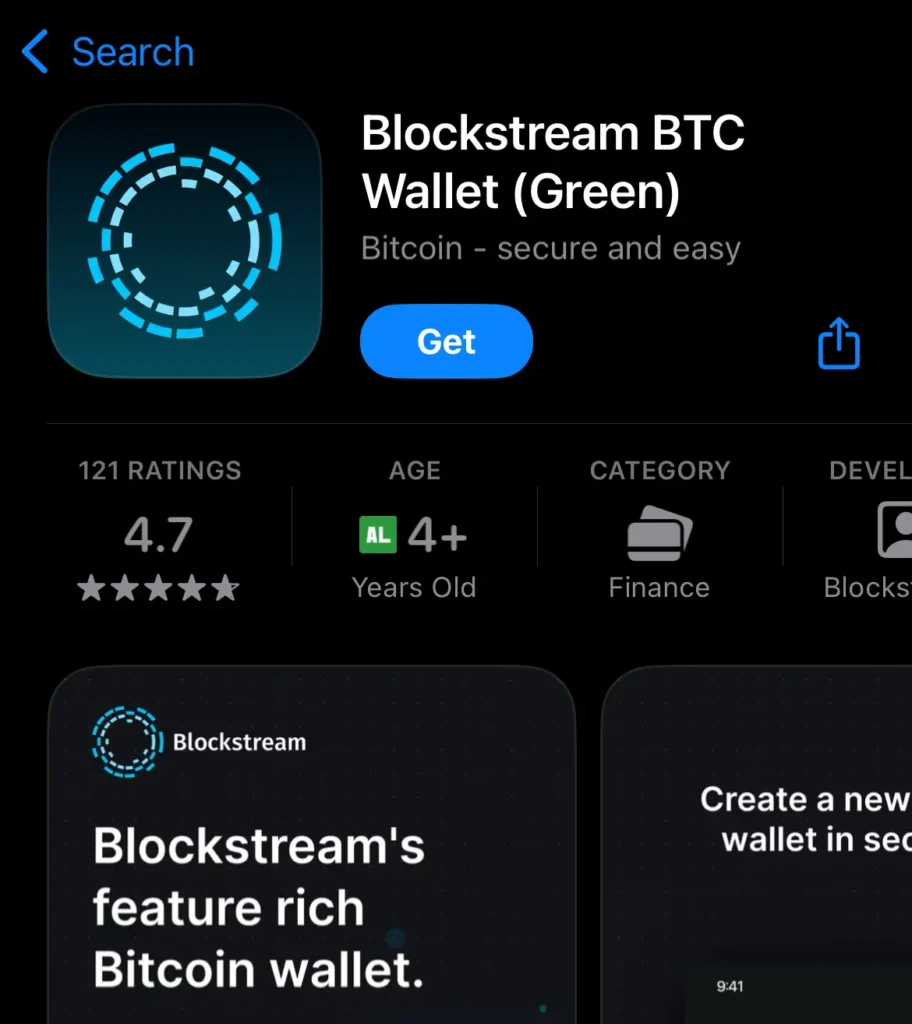
The wallet's official website is https://blockstream.com/app/. Never download from unknown sites, advertisements or external APKs.
When you open the app for the first time, you'll be given the option of creating a wallet or connecting to a Jade (Blockstream's hardware wallet). In this tutorial, we'll focus on creating a mobile wallet.
If you want to change the language to Portuguese, go to “Settings” by clicking on “...” in the top right-hand corner, “App Settings”, “Language” and select “Portuguese (Brazil)”. At the time of writing, the Portuguese translation is not yet complete, but it may help.
Your wallet is now created, but for security reasons you need to make a backup of your private key.
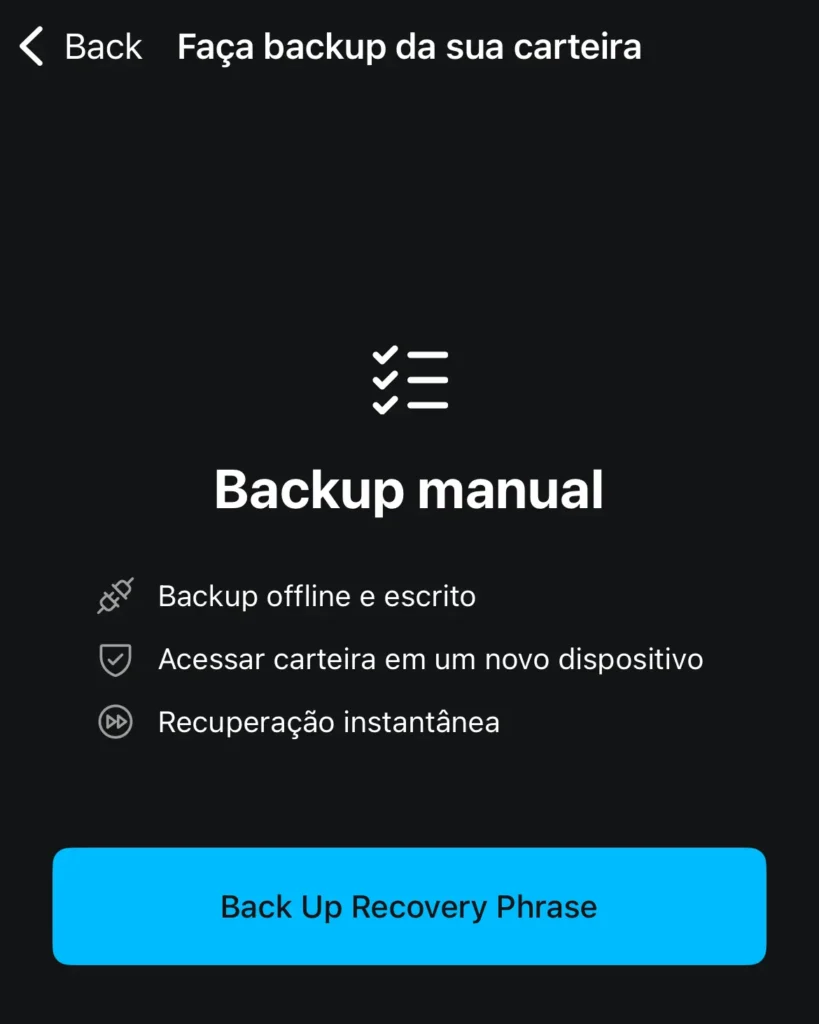
The really decisive factor for the security of your wallet is how this backup is stored: securely, offline and away from third parties.
This physical copy of your recovery phrase is used to import your wallet onto another device, in case you delete the app, lose your phone or something else happens.
When you've accumulated a significant amount, consider purchasing a hardware wallet and storing your recovery phrase on a metal plate to make the backup resistant to water and fire, among other things.
If your wallet has already been created by this application for some time, it is possibly a multisig with 2FA. The singlesig wallet is simpler, it only requires a subscription to spend your coins, while the multisig in Blockstream Wallet has two possible configurations.
Multisig 2-2The Blockstream key: requires two signatures to spend your bitcoins. One key remains on your cell phone protected by PIN or FaceID and the other is on Blockstream's servers, accessible by a 2FA of your choice.
The second authentication (2FA) can be an SMS, email or authentication application such as Google Authenticator. So in this case, a transaction would only be sent after you confirm your PIN or FaceID and a code received by SMS, for example.
As a precaution, this security mechanism only lasts about a year (51,840 blocks on the Bitcoin network, to be precise), as there is always the possibility that you could lose 2FA or the Blockstream could simply disappear. If you don't move your wallet for a year, the need for the second signature disappears and your cell phone key is once again enough to sign transactions.
Multisig 2-3The wallet has 3 keys, but still only requires two to spend bitcoins. Again, one key on the cell phone and one on Blockstream's servers protected by 2FA, but you keep a third key as an additional backup.
In this case, the wallet doesn't need to be moved to renew the one-year period for maintaining the security of two-factor authentication. This security mechanism is valid indefinitely, because if something unforeseen happens, the third key guarantees that the bitcoins will be redeemed.
For this tutorial, we'll take the simpler route of a unique private key (singlesig), which is the app's current default.
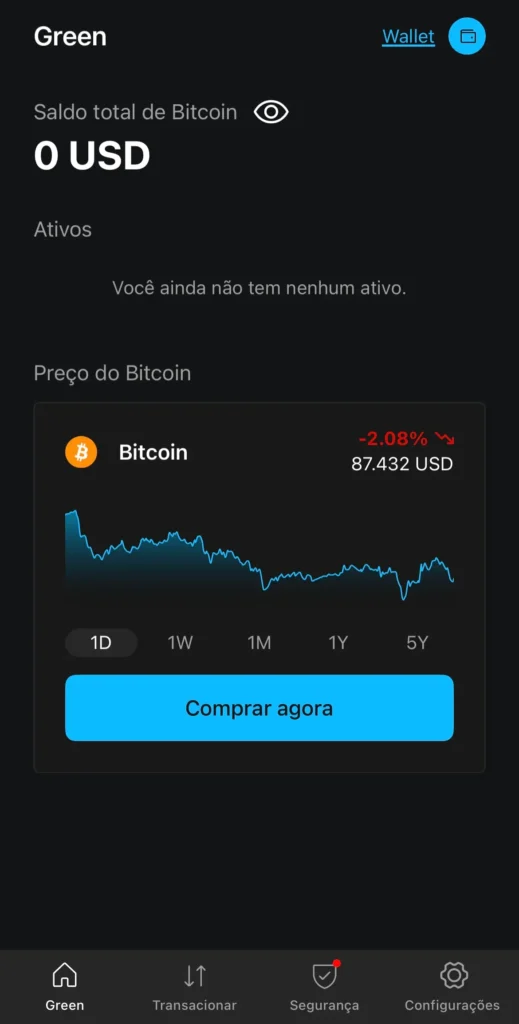
On the wallet's main screen you will see:
In the security settings, you can:
In other settings, there are the options of:
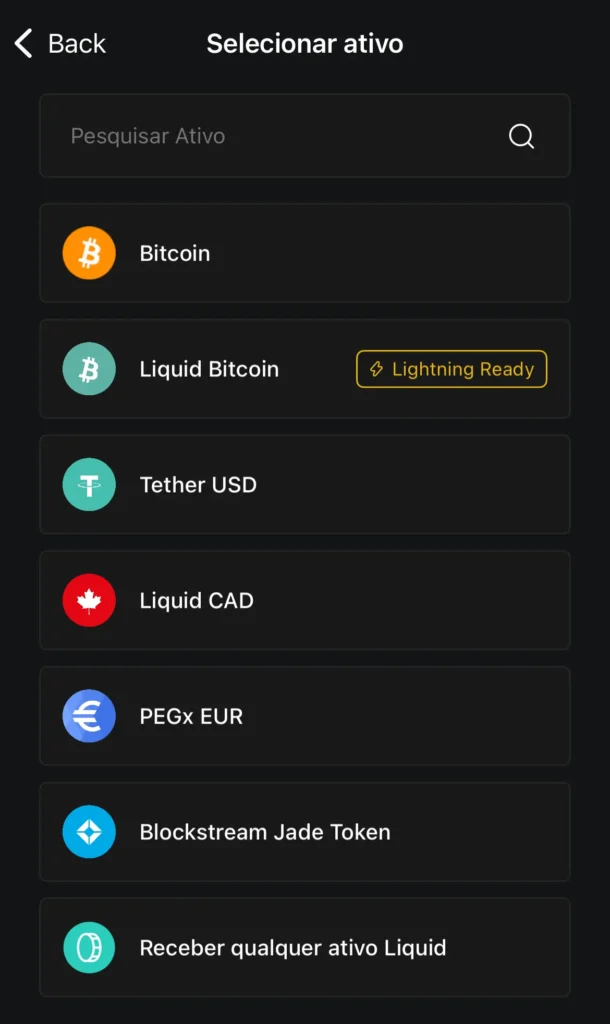
Important: make sure you select the correct asset before sending funds to this wallet. Depositing an asset other than the one you have selected may result in a permanent loss of funds.
With the exception of Bitcoin on the main network, all other assets available on the Blockstream Wallet operate on the Liquid network. This includes dollar Tether (USDT) and other stablecoins. Send assets from other networks, such as USDT from Ethereum, Tron or Solana, to a Blockstream Wallet address doesn't work and can result in error or even permanent loss of funds.
To receive Bitcoin on-chain (on the main Bitcoin network), select the option “Bitcoin”, identified by the icon orange. Bitcoin with icon green represents the Liquid Bitcoin (L-BTC), which is an asset of the Liquid backed 1:1 in BTC.
By selecting Liquid Bitcoin (L-BTC), The wallet allows you to receive both L-BTC directly how much payments via Lightning Network. When someone sends BTC via Lightning, Blockstream Wallet automatically converts that amount to L-BTC, by carrying out a swap so that the balance appears correctly within the Liquid network.
To adjust the sending rate, click on “Change Speed” and choose the rate you are willing to pay, depending on how quickly you want the transaction confirmed.
After confirming all the transaction details, drag the bottom button to the right to transmit the transaction to the network.
Important: If the transaction is for an asset other than Bitcoin, you must use a Liquid address to send it.
The Blockstream app is a non-custodial wallet with ingenious security options and alternatives for different profiles, as well as the versatility to trade on-chain, on Lightning and on Liquid. You don't have to venture into everything the wallet offers, but you can take advantage of many of the features for free.
 Português do Brasil Português do Brasil
  English
 Español